Defining a Set Point
- Press
 (Add) to add a new entry. The New
dialog appears, as shown. Choose the Type (● Set Point or ○ Group) and
give it a Name that reflects what it does, then press
(Add) to add a new entry. The New
dialog appears, as shown. Choose the Type (● Set Point or ○ Group) and
give it a Name that reflects what it does, then press
 (OK).
(OK).
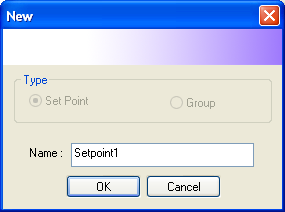
Figure 100 — New dialog: Type (● Set Point / ○ Group), Name: Setpoint1
-
Define the condition for that set point. Press
(Add), set the values you want, and press
(OK). -
To change a condition, select it and press
 (Edit).
 -
To delete a condition, select it and press
 (Remove).
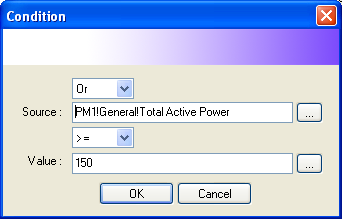
Figure 101 — Condition dialog: Or/And (dropdown); Source: PM1!General!Total
Active Power; >=; Value: 150; OK/Cancel
- Define the action for that set point. Press
-
To change an action, select it and press
(Edit). -
To delete an action, select it and press
(Remove).
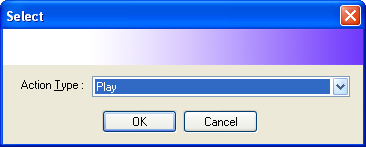
Figure 102 — Select dialog: Action Type: Play (dropdown); OK/Cancel
Set the remaining properties of the set point.
To define another set point, go back to step 1.
To rename a set point, select it and press
To delete a set point, select it and press
Note
None of these settings take effect until you press
(OK) to return to normal operation.