Database Setup
This covers MS SQL Server. For MySQL or Access, see the separate documentation.
-
Install SQL 2005 with the default instance.
-
Apply the latest service pack — for SP1 the file is about 250 MB; search for it on the Microsoft website using the keywords SQL2005 SP1 or KB913090. The file name is
SQLServer2005SP1-KB913090-x86-ENU.exe. -
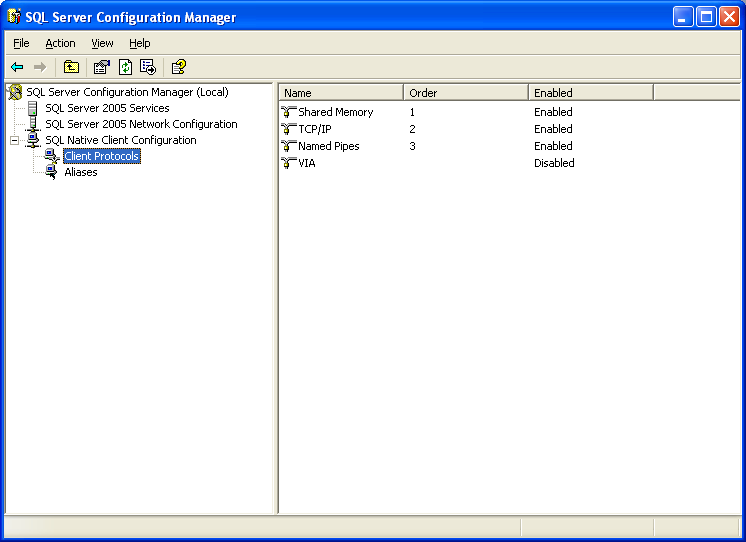
Configure SQL 2005 to enable Named Pipes and TCP/IP.
Figure — SQL Server Configuration Manager, Client Protocols: Shared Memory (Enabled), TCP/IP (Enabled), Named Pipes (Enabled), VIA (Disabled)
-
Attach the database.
a. Copy
MMIReport.mdfandMMIReport_log.logtoc:\SQLData.b. Open Microsoft SQL Server Management Studio.
c. Connect to the server.
d. Right-click Database and select Attach.
e. Click Add, browse to
c:\SQLDataand chooseMMIReport.f. Click OK through to the end.
-
Create the user.
a. In Microsoft SQL Server Management Studio,
b. go to Security → Logins,
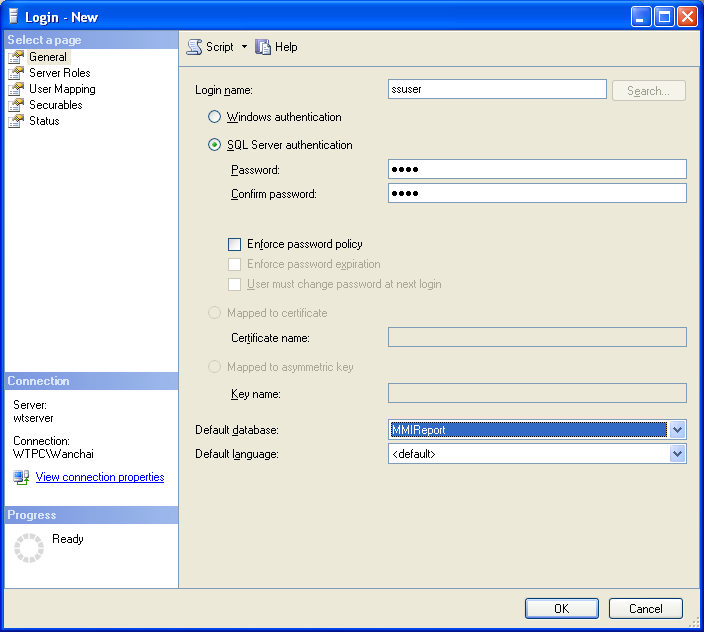
c. right-click Logins and choose New Login,
d. enter
ssuserwith the password1234(enter both without the quotes).
Figure — Login – New dialog; Login name: ssuser; ● SQL Server authentication; Default database: MMIReport
e. Click OK.
-
Give the user access to the database.
a. In Microsoft SQL Server Management Studio,
b. go to Databases → MMIReport → Security → Users,
c. remove
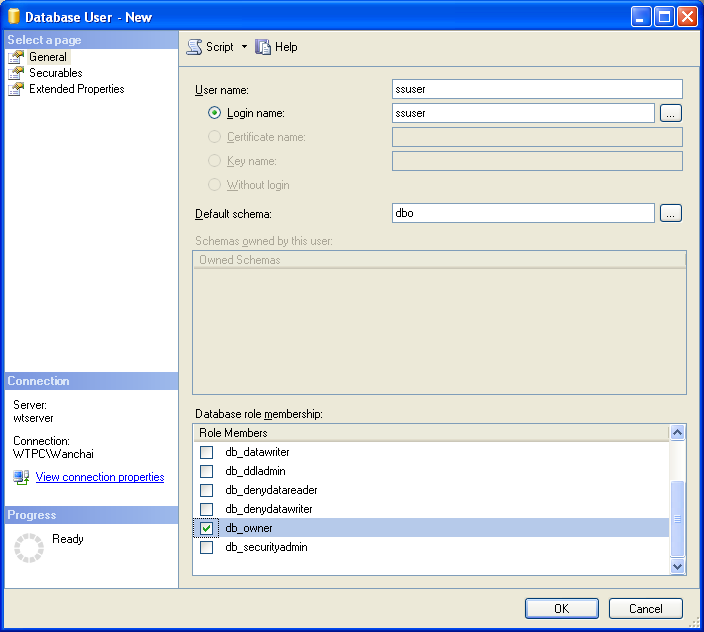
ssuserfrom this tree if it is already there,d. right-click Users and choose New User.
Figure — Database User – New dialog; User name: ssuser; Login name: ssuser; Default schema: dbo; Role membership: ☑ db_owner
e. Click OK.
-
Test logging in as
ssuserwith its password; the login should complete successfully. -
If it does not, work through these instructions again alongside the error message.